We have has a number of queries from clients who have new mailboxes and are trying to set up the account on their iPhone or iPad. The symptoms are straightforward:
- They can see the messages in their inbox but
- They cannot replay from the email address.
The solution is generally straightforward. When you set up the account manually, you go through a number of screens.
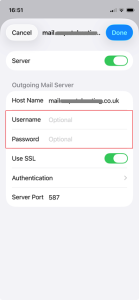
On the screen where you specify the incoming and outgoing server and credentials, the outgoing username and password are marked as optional. Technically they are as you may want to just receive mail, for example if you are managing a colleague’s mailbox and will reply from your own email address.
If you want to reply using your email address, you do need to supply an outgoing username and password.
Adding credentials for sending
To sort out the problem:
- Go to Settings and then Apps.
- Search for and click on Mail.
- Click on Mail Accounts.
- Select the account which is not working.
- Click on Account Settings.
- Under Outgoing Mail Server, click on SMTP and then on the primary server.
- Add your username (email address) and password and click Done.
This should sort out the problem.
Other possibilities
If your credentials are set up correctly, then there is an error somewhere else in the settings. On a phone, the most likely problem is a typo. We once spent 20 minutes looking for the typo before noticing that there was a full stop rather than a comma!
If you think the problem might be in the password, type it into somewhere in plain text – an app such as pages or notes. Copy it and then paste it into the password field. Once you have saved the settings, remember to delete it out of the app you used.
When everything is working
Once you have got everything working, do not forget to save your password is a safe place. If you change your phone or need to log into webmail, you will need it!